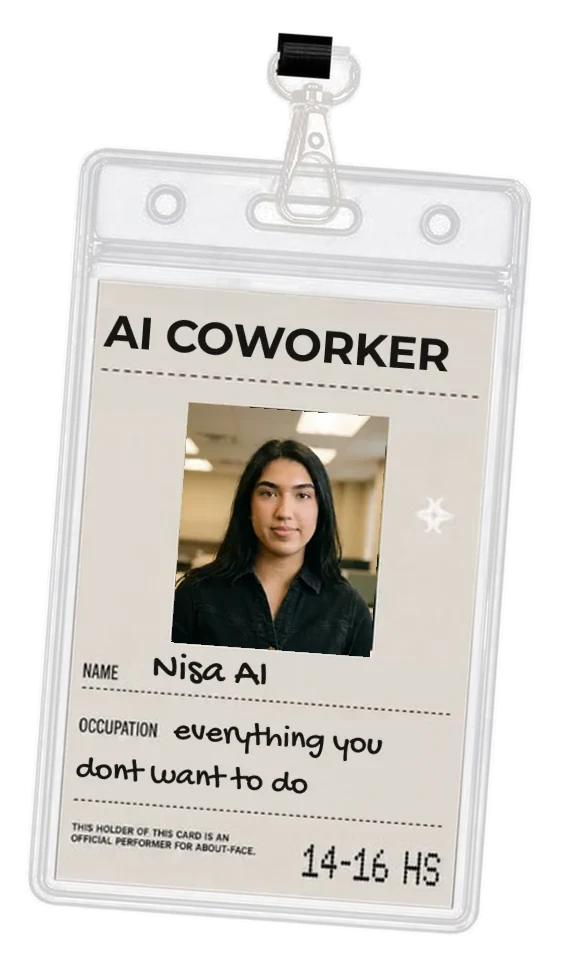
Nisa is not only in Slack. You can write to her on WhatsApp and on iMessage too, from your phone, and it is the same Nisa on the same account: the tools you connected and what she knows about your company come with you.
How to start on WhatsApp
- Open Settings → Channels in the dashboard. It shows Nisa's WhatsApp number and a QR code.
- Scan the QR code with your phone, or text the number.
- Nisa answers with a link. Tap it and your number is connected to your account.
You can also just ask Nisa in Slack for the link; she sends it.
How to start on iMessage
- Open Settings → Channels. It shows Nisa's iMessage address.
- Text it from your iPhone or Mac.
- Tap the link she sends back to connect it to your account.
What works on your phone
- Ask her anything, the way you would in Slack. Voice messages work too (see Voice messages).
- Approvals reach you there. On WhatsApp you decide with a tap on a button.
- Files she makes for you (a CSV, a document) arrive in the chat.
Good to know
WhatsApp's 24-hour rule. WhatsApp only lets Nisa start a conversation within 24 hours of your last message to her. Outside that window she reaches you in Slack instead, and says so.
Unlinking. Settings → Channels has an unlink button for each. Unlinking stops Nisa from writing to that number; nothing else on your account changes.